
Operational Sites Management
Organizing flights by physical facilities, geographic locations, and mission zones.
4 min readUpdated October 2026
3 HOTSPOTS
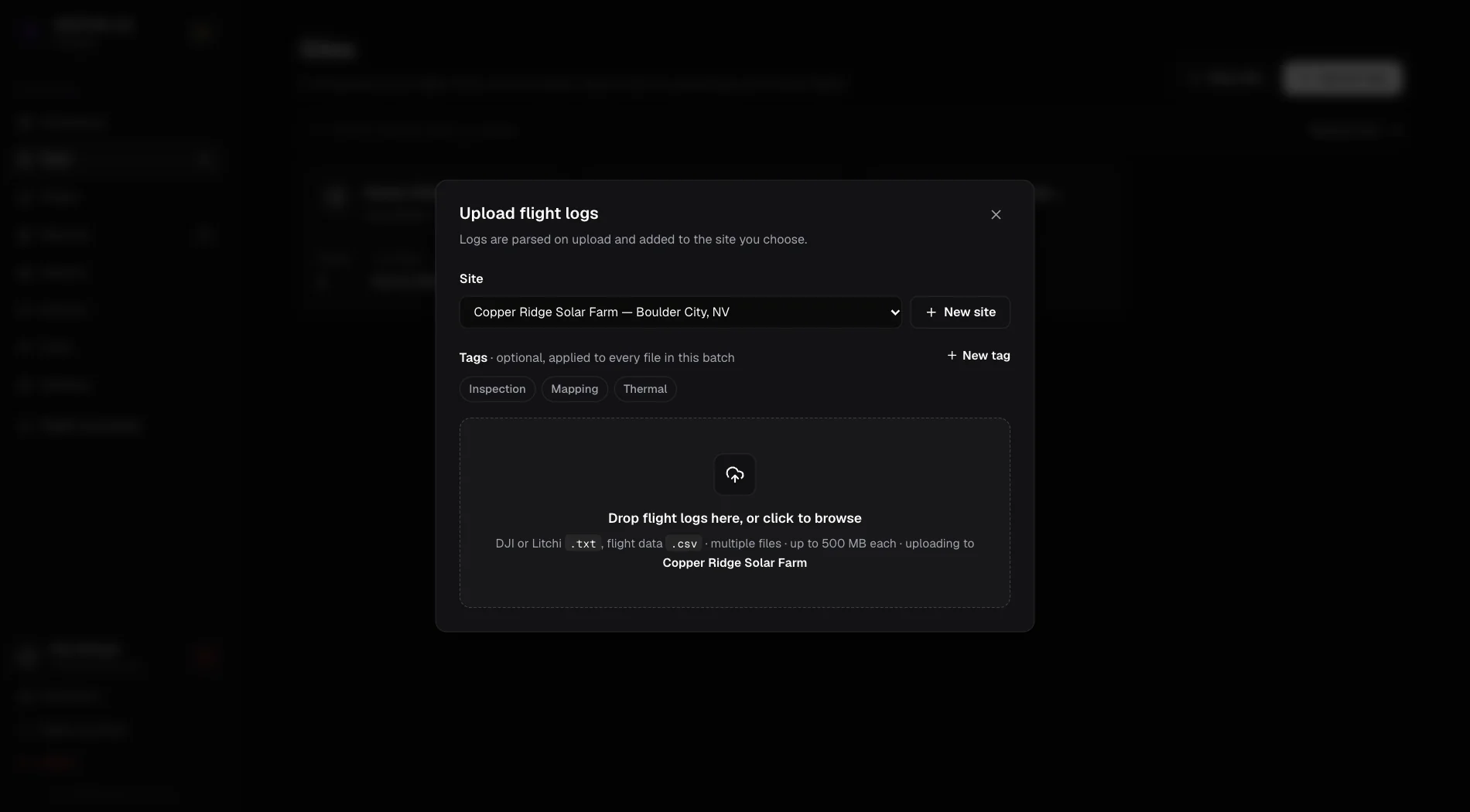
1Site picker
Choose the site the logs belong to, or create a new site inline
2Batch tags
Optional tags applied to every file in this upload
3Drop zone
Drop or browse for multiple .txt / .csv logs at once
Creating an Operational Site#
Operational Sites represent distinct geographical areas (e.g., "Alpha Substation Sector 4", "Port Terminal B Inspection", "Solar Farm West").
Step-by-Step Creation:
1
Navigate to the Sites module from the sidebar.
2
Click "New Site" in the top right.
3
In the modal, provide:
Site Name (Required): Unique operational identifier.
Location (Optional): Geographic city, coordinates, or facility address.
Description (Optional): Mission parameters, airspace restrictions, or operator guidelines.
4
Click "Create site". The new site opens on its Upload tab so you can add logs straight away.
You can also create a site from the upload dialog with the New site button next to the site picker.
Managing Site Information#
Click any site card to open the site. The header shows totals for the site — flights, flight time, distance flown, highest altitude and last flight.
The Flights tab lists every flight in the site; select one to see its route, key figures and altitude/speed profile alongside the list.
The Upload tab adds more logs to this site.
The Settings tab edits the name, location and description, or deletes the site.
Data Isolation & Deletion Rules#
Multi-Tenant Scoping: Sites created by one operator are strictly isolated from all other users.
Safe Cascading: Deleting a site removes its associated records and annotations after a double-confirmation prompt to prevent accidental data loss.