
Flight Records Repository
Centralized repository of archived flights, multi-criteria filtering, and batch operations.
4 min readUpdated October 2026
3 HOTSPOTS
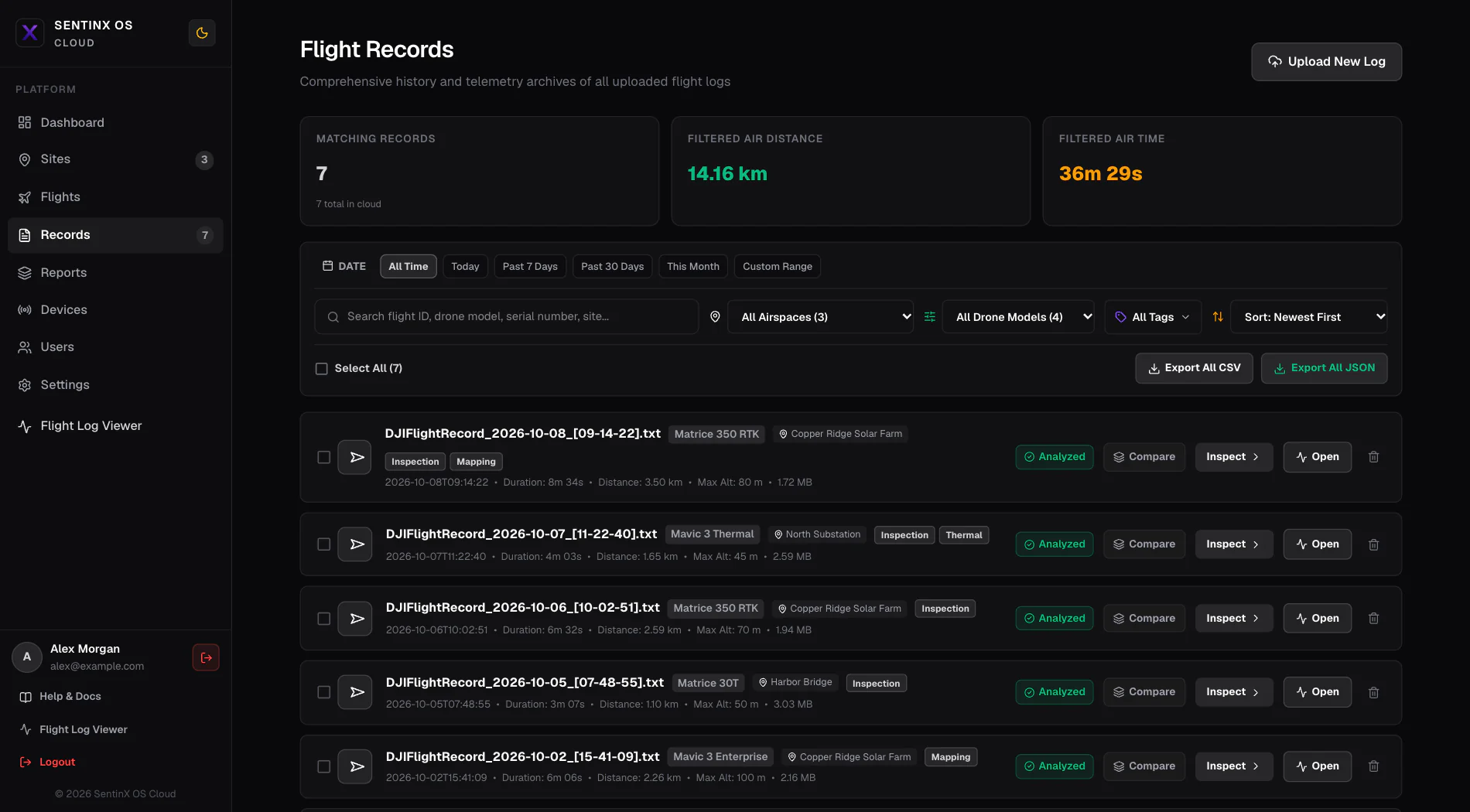
1Search & filters
Filter by date, site, drone model and tags; export CSV or JSON
2Flight rows
File, aircraft, site, tags, duration, distance and max altitude
3Row actions
Add to comparison, open the detail drawer, or open in the viewer
Table Structure & Columns#
The Flights tab provides a high-density tabular view of every mission logged in SentinX Cloud:
| Column | Description |
|---|---|
| Selection Checkbox | Multi-select 2 to 4 flights for comparison or synchronized replay. |
| Flight Name / Log ID | Original filename and unique database record UUID. |
| Site | Assigned physical operational facility badge. |
| Drone Airframe | Detected drone model (e.g. DJI Mavic 3 Enterprise). |
| Duration & Distance | Total airborne time and cumulative geodesic distance flown. |
| Max Altitude / Speed | Peak AGL/MSL altitude and peak horizontal velocity. |
| Tags | Color-coded categorization tags (e.g. #Routine, #Incident). |
| Date & Time | Local flight timestamp recorded in the telemetry file. |
| Actions | Quick triggers: Inspect (Eye), Compare (Sliders), Replay (Activity), Delete (Trash). |
Multi-Selection for Compare & Replay#
Checking 2 to 4 flight rows activates the Tactical Action Bar at the bottom of the screen.
Click "Compare Selected (N)" to launch the side-by-side technical telemetry comparator.
Click "3D Replay (N)" to enter the synchronized multi-drone mission playback room.
Flight Processing Status Indicators#
Analyzed (Green): Telemetry fully extracted, indexed, and cached with peak sensor statistics.
Processing (Amber): Raw binary file being decoded and converted.
Uploaded (Cyan): File ingested in cloud storage, ready for deep analysis.